RoutMe AI chat for BigCommerce
On BigCommerce, the RoutMe chat widget can be added through Script Manager in the control panel, and store data can be exposed as read-only MCP tools using a store-level API account whose scopes are limited to the read-only variants. RoutMe has no BigCommerce app or native connector today.
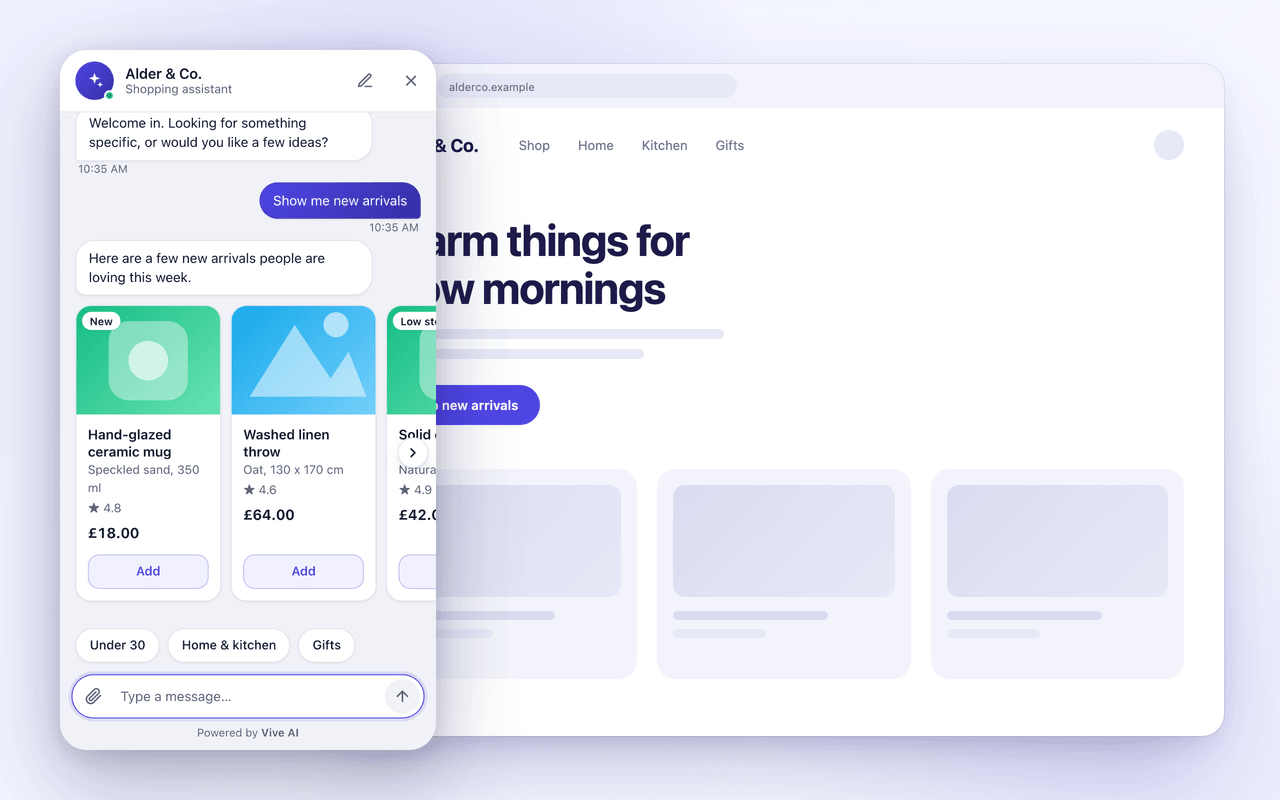
Add the widget with Script Manager
- 1
In the RoutMe dashboard, create a chat widget and list your storefront origins.
- 2
In the BigCommerce control panel open Storefront, then Script Manager, and create a script.
- 3
Set the placement to Footer, choose the pages it should run on, and paste the RoutMe script tag.
- 4
Save, then open the storefront from an allowed origin and confirm the launcher loads.
BigCommerce documents that Blueprint-based themes do not support Script Manager, so confirm your theme is Stencil-based.
Expose store data read-only
- 1
In the control panel create a store-level API account under Settings, Store-level API accounts.
- 2
Select only read-only OAuth scopes, for example the Orders (read-only) and Products (read-only) options. BigCommerce states that scopes cannot be changed after the account is created.
- 3
Keep the access token on your MCP server and send it in the X-Auth-Token header on GET requests.
- 4
Register the MCP server in RoutMe and test the connection.
Example read-only tools
get_orderReturn status and shipment details for one order.
get_product_availabilityReturn price and stock for a product or variant.
- Store-level tokens do not expire by time, so treat the token as a permanent secret and rotate it by creating a new account.
Official documentation and sources
Related guides
- How to add an AI chat widget to your online storeAdd an AI chat widget by placing one script on each storefront page and connecting read-only data. Steps for Shopify, WooCommerce, Wix and more.
- AI chatbot for Shopify: what to look forA practical checklist for choosing an AI chatbot for a Shopify store, from theme install and data access to read-only tools, handoff and honest roadmaps.
- How an AI agent looks up order status safelyA safe order lookup verifies the customer, calls a narrow read-only tool, returns only needed fields and logs the call. See the design step by step.
Frequently asked questions
Does the widget work on checkout pages?
Script Manager has separate handling for checkout and order confirmation pages. We have not tested the widget there, so treat checkout as out of scope for now.
Which scopes should I grant?
Only read-only scopes for the data your tools return, such as orders and products. Add more only when a tool needs them.